Revit OpEd: Model Medic 2012: "I wrote about this diagnostic tool when it first appeared. The 2012 compatible version is now available. You can download the new features ..."
In a previous post, I discussed the process of connecting a external data source (Excel) with a Navisworks model. In this post, we will connect an MS Access database with a Navisworks model. As before, I’ll walk you thru how to setup the database link. For this demo, I am going to use the Gatehouse sample file that ships with Navisworks 2016. You can find the files C:\Program Files\Autodesk\Navisworks Manage 2014\Samples\Gatehouse\ The Process In order to connect an Access database to a Navisworks model, we need to configure a DataTools within Navisworks. We will then be configuring the database connection. When working with the DataTools in Navisworks, there are a few very important rules to keep in mind. If you are using a 32-bit workstation, then you need to utilize the 32-bit ODBC drivers. 64-bit workstations need to utilize 64-bit ODBC drivers. It is also important to note, that the link to Navisworks is one way. Data can be linked and viewed inside of Navisworks, but t...
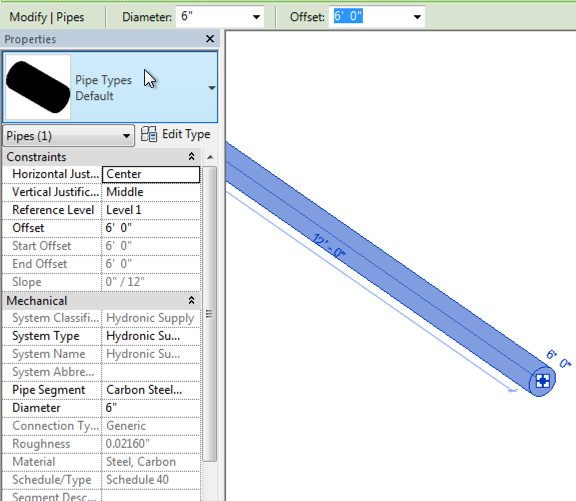
When exporting data from Revit to Navisworks, sometimes parameter data may not appear. For example, Figure 1 shows a pipe create in Revit along with a sampling of some of the parameters associated with the pipe. Figure 2 shows the pipe in Navisworks (exported using the Revit Navisworks exporter). Figure 1 - Revit Parameter View for Pipe Figure 2 - Navisworks Parameter View for the Selected Pipe The first reason that the parameters may not be coming across from Revit is with the export settings. Make sure that Convert element parameters and Convert element properties are both enabled. Figure 3 - Revit Navisworks Exporter Settings Dialog The second potential reason for parameters not coming across or displaying is due to the selection resolution (Figure 4) in Navisworks. When you select an item(s) in Navisworks, it doesn’t know what level/area of item to start selecting in the project browser. It could be at the model, layer, instance, group, or geometry levels. Navisworks provides si...
BIM Aficionado: Revit to CAD - Nothing to Fear : We are well on our way to our goal of 50% DD on our new 'GA Apartment' BIM project, with a well developed model, fifty sheets set u...

Comments
Post a Comment