I just found a new Revit Architetcure Resource Center site from Autodesk. I have not had much time to explore it, but I thought I would put it out there for others to see.
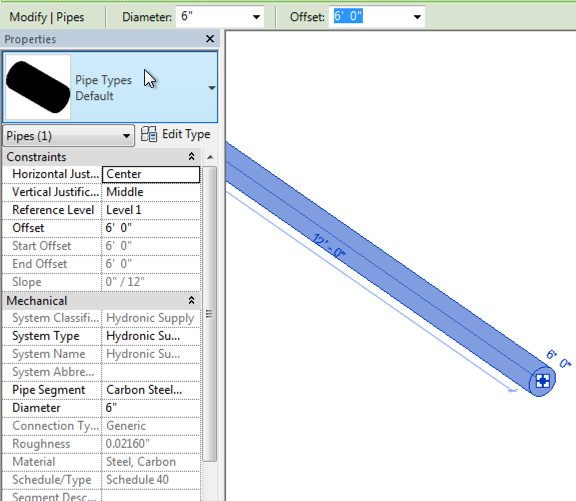
When exporting data from Revit to Navisworks, sometimes parameter data may not appear. For example, Figure 1 shows a pipe create in Revit along with a sampling of some of the parameters associated with the pipe. Figure 2 shows the pipe in Navisworks (exported using the Revit Navisworks exporter). Figure 1 - Revit Parameter View for Pipe Figure 2 - Navisworks Parameter View for the Selected Pipe The first reason that the parameters may not be coming across from Revit is with the export settings. Make sure that Convert element parameters and Convert element properties are both enabled. Figure 3 - Revit Navisworks Exporter Settings Dialog The second potential reason for parameters not coming across or displaying is due to the selection resolution (Figure 4) in Navisworks. When you select an item(s) in Navisworks, it doesn’t know what level/area of item to start selecting in the project browser. It could be at the model, layer, instance, group, or geometry levels. Navisworks provides si...
In a previous post, I discussed the process of connecting a external data source (Excel) with a Navisworks model. In this post, we will connect an MS Access database with a Navisworks model. As before, I’ll walk you thru how to setup the database link. For this demo, I am going to use the Gatehouse sample file that ships with Navisworks 2016. You can find the files C:\Program Files\Autodesk\Navisworks Manage 2014\Samples\Gatehouse\ The Process In order to connect an Access database to a Navisworks model, we need to configure a DataTools within Navisworks. We will then be configuring the database connection. When working with the DataTools in Navisworks, there are a few very important rules to keep in mind. If you are using a 32-bit workstation, then you need to utilize the 32-bit ODBC drivers. 64-bit workstations need to utilize 64-bit ODBC drivers. It is also important to note, that the link to Navisworks is one way. Data can be linked and viewed inside of Navisworks, but t...
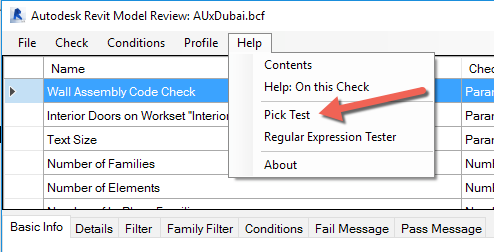
If you have read any of my previous posts about Model Checking, then you are probably aware of how much I like Autodesk Revit Model Review. It’s free and it is fairly easy to use. When it comes to model checking, free and easy to use are important options. At Davis Consulting, when we are tasked by a client to check models (cost is typically $400-1200 depending on complexity of model and standards to follow) we need to perform some kind of check on the worksets. There are numerous ways to do this, but we like to use automation as much as possible to reduce the time and the cost of the checking process. Unfortunately, workset checking with Autodesk Revit Model Review has some issues and is one area where Autodesk Revit Model Review needs to be improved upon. In the example I am going to show, we are going to check a model to make sure that all Interior Doors are in the Interiors workset. The shortcoming with Autodesk Revit Model Review is that we can’t just create a check that que...

Comments
Post a Comment