Caught this video on YouTube from Technical Sales International on their external tool for Revit MEP 2010 that allows you to export Revit MEP objects to fabrication using CAM-Duct, CAM-Duct, and CAD-Mech.
This was GREAT--cuts 2 or 3 steps out of the process from designer's drawing/model to fabrication. This is really where the rubber meets the road with BIM--once you can demonstrate real, believable savings in process (as you have done here), any rational M/E/P contractor will be happy to produce the BIM models, which can also be used to avoid clashes in the field. Thanks
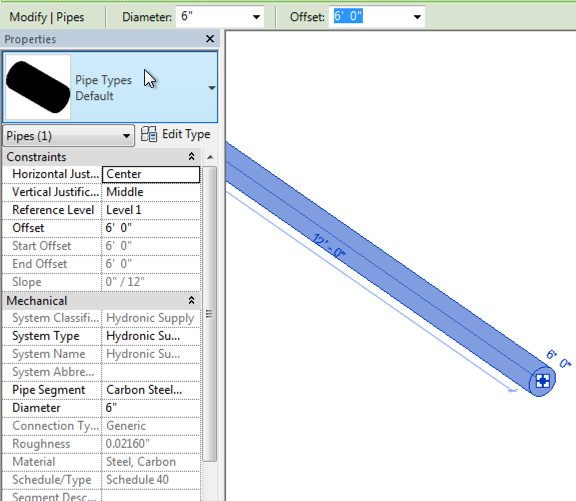
When exporting data from Revit to Navisworks, sometimes parameter data may not appear. For example, Figure 1 shows a pipe create in Revit along with a sampling of some of the parameters associated with the pipe. Figure 2 shows the pipe in Navisworks (exported using the Revit Navisworks exporter). Figure 1 - Revit Parameter View for Pipe Figure 2 - Navisworks Parameter View for the Selected Pipe The first reason that the parameters may not be coming across from Revit is with the export settings. Make sure that Convert element parameters and Convert element properties are both enabled. Figure 3 - Revit Navisworks Exporter Settings Dialog The second potential reason for parameters not coming across or displaying is due to the selection resolution (Figure 4) in Navisworks. When you select an item(s) in Navisworks, it doesn’t know what level/area of item to start selecting in the project browser. It could be at the model, layer, instance, group, or geometry levels. Navisworks provides si...
In a previous post, I discussed the process of connecting a external data source (Excel) with a Navisworks model. In this post, we will connect an MS Access database with a Navisworks model. As before, I’ll walk you thru how to setup the database link. For this demo, I am going to use the Gatehouse sample file that ships with Navisworks 2016. You can find the files C:\Program Files\Autodesk\Navisworks Manage 2014\Samples\Gatehouse\ The Process In order to connect an Access database to a Navisworks model, we need to configure a DataTools within Navisworks. We will then be configuring the database connection. When working with the DataTools in Navisworks, there are a few very important rules to keep in mind. If you are using a 32-bit workstation, then you need to utilize the 32-bit ODBC drivers. 64-bit workstations need to utilize 64-bit ODBC drivers. It is also important to note, that the link to Navisworks is one way. Data can be linked and viewed inside of Navisworks, but t...
From BIM & BEAM If you are an Autodesk Subscription customer with a seat of either the Premium or Ultimate edition of Building Design Suite, Plant Design Suite, or Infrastructure Design Suite, or a seat of Revit Structure, you get the benefit of using the Structural Analysis for Revit cloud service. Structural Analysis for Revit uses the power of Autodesk 360 to conduct the computationally-heavy task of structural analysis directly from your Revit software but without locking out your system while it processes. The service consumes two cloud credits each time you use it. In case you are still learning about Autodesk’s cloud credits, each seat of Subscription on one of the software packages outlined above gets 100 cloud credits per year and if you run out of allocated cloud credits they are available for purchase for 100USD for 100. You can find out more about cloud credits and metered usage here . The service is powered by the industry leading Autodesk Robot Structura...


This was GREAT--cuts 2 or 3 steps out of the process from designer's drawing/model to fabrication. This is really where the rubber meets the road with BIM--once you can demonstrate real, believable savings in process (as you have done here), any rational M/E/P contractor will be happy to produce the BIM models, which can also be used to avoid clashes in the field. Thanks
ReplyDeleteI cant see the video, youtube i sblocked at the office, but I heard it doesnt take the families through only duct and pipe...still very very cool
ReplyDeleteSame web version
ReplyDeletehttp://www.map-cc.com/Revit%20to%20Manufacture/Camtasia%20Studio/Revit%20to%20FAB/Revit%20to%20FAB.html